Follett Software Ops app
The Follett Software Ops app lets you submit, view, and approve requests, and view and scan assets. There is a Home tab, Requests tab, Assets tab, and Scan functionality. You can also update the status of requests, and add labor and/or notes.
The app is available for iOS™ and Android™ devices.
Log in to the app
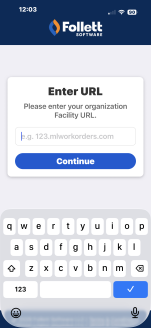
Enter the URL you use on the web app, and then tap Continue.
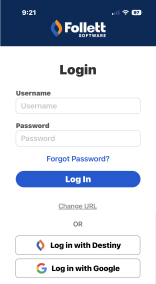
You can log in manually with your web app username and password. You can also log in using single sign-on with Destiny or Google.
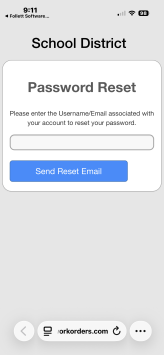
If you forgot your password, tap Forgot Password? The web app opens. Enter the username or email associated with your account, and tap Send Reset Email. After resetting your password, you can use the new password in the app.
Home tab
After you log in, the Home screen appears. Content varies based on your web app permissions. You will see one of the following variations:
- You can only submit a request.
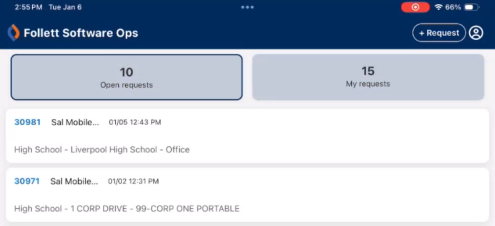
- 'Open requests' are requests you submitted with a status of Pending, Approved, Assigned, In Progress, or On Hold.
- 'My requests' includes all requests with open statuses, as well as Closed, Completed, Canceled, Duplicated, and Declined.
- You can only approve and submit requests.
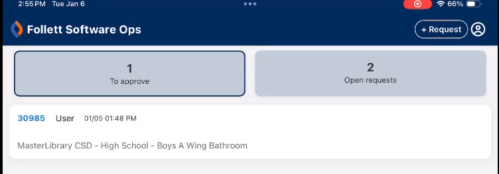
- 'To approve' shows requests that are pending your approval.
- 'Open requests' are requests you submitted with a status of Pending, Approved, Assigned, In Progress, or On Hold.
- You are assigned requests.
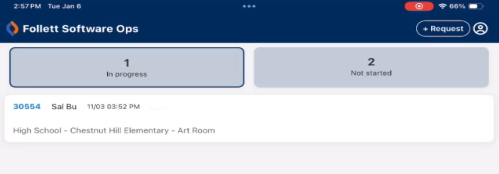
- 'In progress' are requests assigned to you that are started.
- 'Not started' are requests assigned to you that you haven't started.
- You can submit, approve, and view all requests.
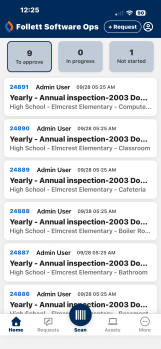
- 'To approve' shows requests that are pending your approval.
- 'In progress' are requests assigned to you that are started.
- 'Not started' are requests assigned to you that you haven't started.
Submit a request
To submit a request, tap + Request. The process uses walk-through mode, which will take you step-by-step through each field you must complete.
Requests tab
You will see any request you have access to on the Requests tab. For example, if you have the ability to approve requests and are a technician, you may also see requests that have already been approved but not assigned to you.
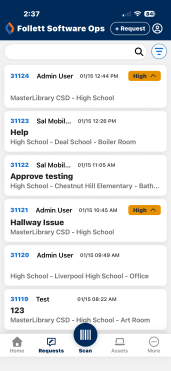
You can search for a specific request, or use  to pull up the Filter Requests screen.
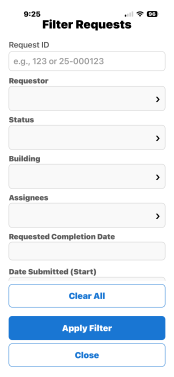
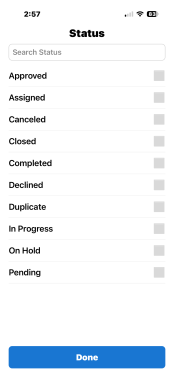
Select the Requestor, Status, Building, or Assignees filter, and then tap the checkboxes on the right side of the screen.
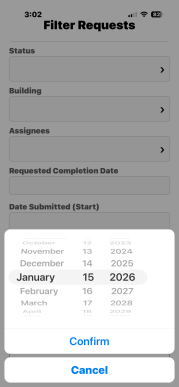
All date field filters use a date picker.
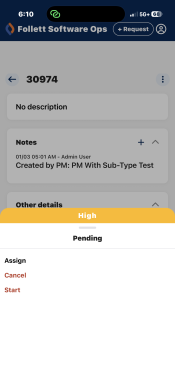
Tap a request to see its details. You can update the status. Tap the up arrow at the bottom of the screen. The current status shows below the priority, and available statuses are below that.
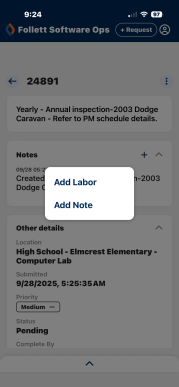
To enter labor or notes, tap  .
.
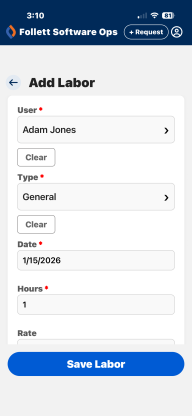
Add Labor
Use the app to add labor for a request. User, Labor Type, Date, Hours, Purpose, and Problem Type are required fields. When you're done, tap Save Labor.
Add Notes
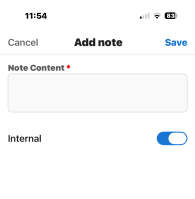
- Enter information about the request in the Note Content field.
- Admin users can use the Internal toggle to add a note. This note is visible to and alerts users who can assign or are assigned the request (but not the requestor).
- Tap Save.
Assets tab
If you have the View Assets or Edit Asset permission, you will see the Assets tab. Only the assets you have access to in the web app appear.
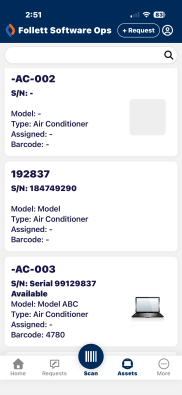
Scan
Use the Scan button to scan asset or user barcodes. Your permissions in the web app and the barcode scanned determine what actions you can take after scanning a barcode.
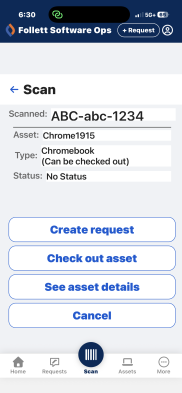
After scanning a barcode, you may see the following buttons:
- Create request (requires the Enter Asset on WOs permission): Tap this to jump to the walk-through form to create a request with the asset information populated.
- Create new request (requires the Can Submit Request on Behalf of Others permission).
- Check out asset (requires the Edit Assigned User Asset permission).
- Tap Check out asset to open the camera to scan a user barcode.
- Tap Complete Checkout. A confirmation screen appears.
- To send a confirmation email, select the checkbox.
- Tap Checkout.
- Tap Done.
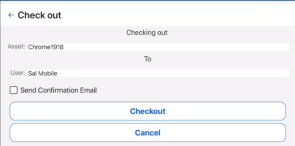
- Check in asset (requires the Edit Assigned User Asset permission): Asset is checked out with a status of In Use.
- See asset details (requires the View Assets or Edit Asset permission): Launches the view asset screen.
- Cancel: If this is the only option available, you do not have appropriate permissions to perform any actions.
More tab
To see the app version, tap the More tab.
Log out
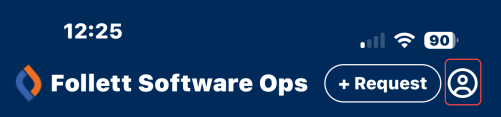
To exit the app, tap the profile icon, and then Log Out.